
Step-by-Step Guide
Introduction
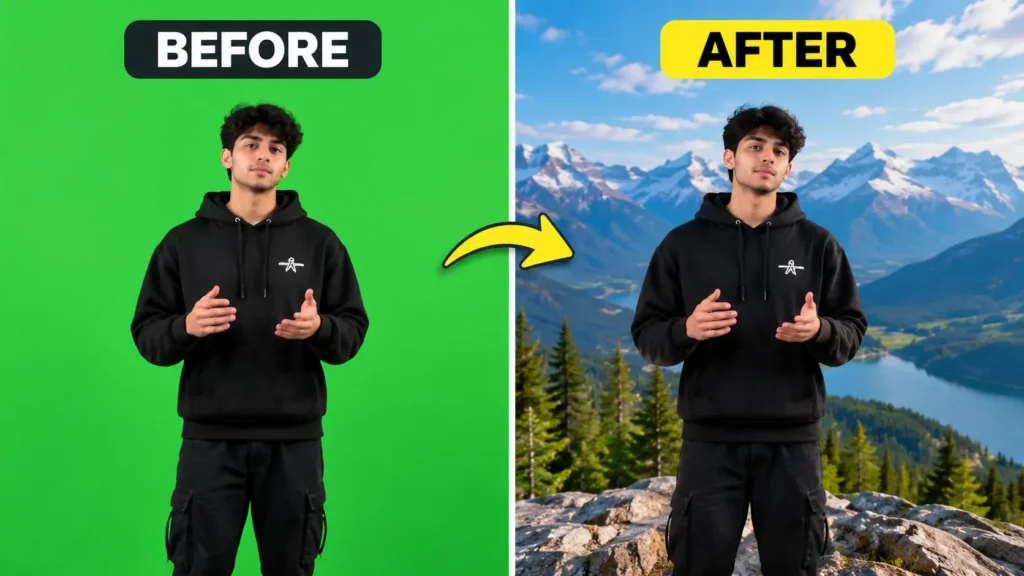
Want to remove whatever’s behind you in a video and replace it with something else a different room, a scenic backdrop, a solid color, anything? KineMaster makes this possible with a feature called Chroma Key. It looks intimidating the first time, but once you’ve done it once, it’s genuinely simple.
Below are two methods: the proper way using a green screen, and a workaround for when you don’t have one.
Method 1: Changing the Background with a Green Screen
(Chroma Key)
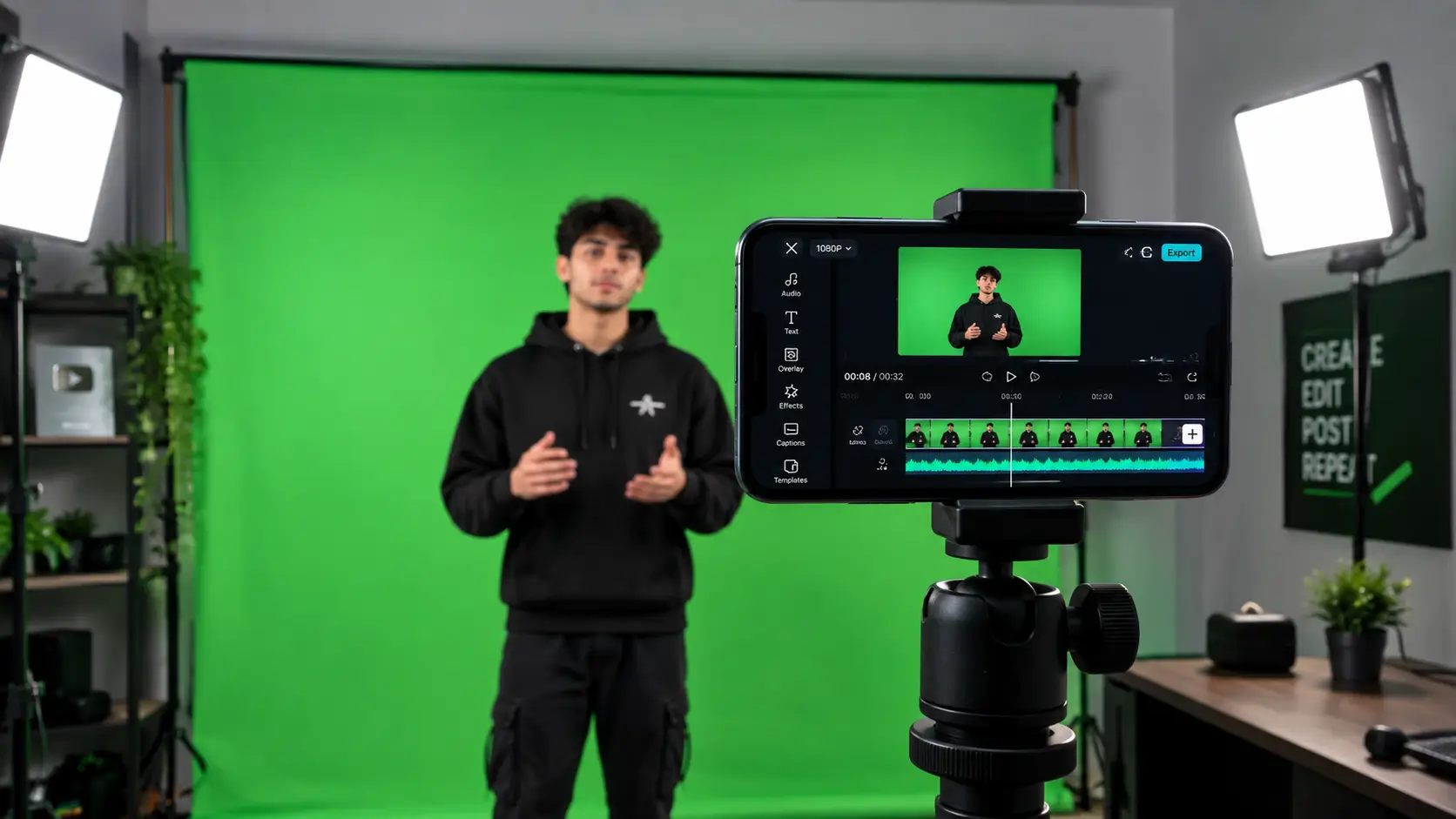
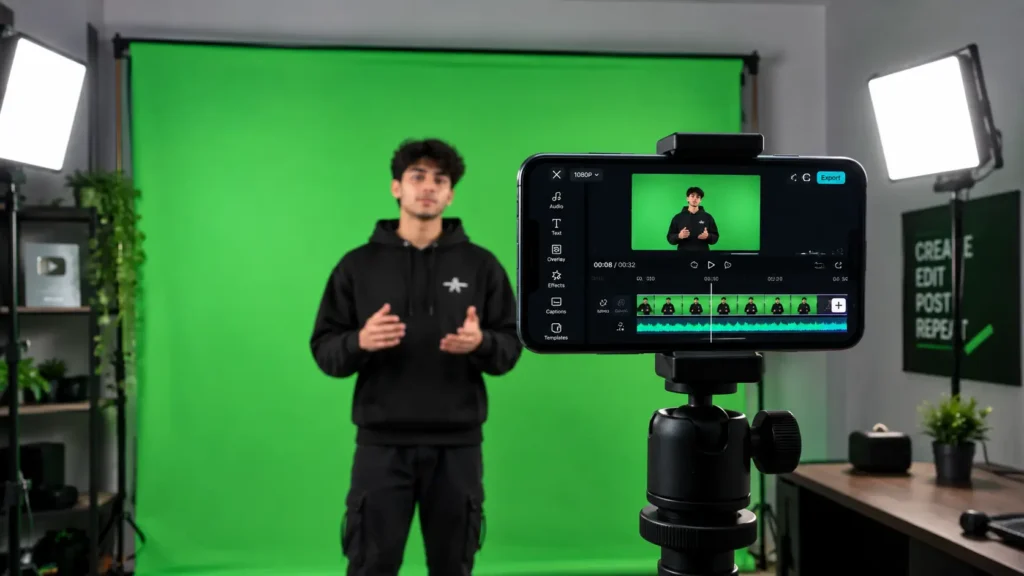
This method actually removes your background and replaces it with new footage or an image. It requires that you’ve already filmed yourself in front of a green (or blue) screen or cloth. That footage needs to be well-lit and free of wrinkles or shadows the cleaner the screen, the cleaner your final cutout will be.
1: Open KineMaster on your phone.
2: Tap the + button to start a new project, and choose your aspect ratio 16:9 for YouTube, 9:16 for Reels/Shorts, etc.
3: Tap Media and select the new background you want a photo or a video. This becomes your bottom layer.
4: Once it‘s on the timeline, tap Layer the + icon, then Media again.
5: This time, select your green screen footage the clip of you in front of the green background.
6: This clip now sits as a separate layer on top of your background. Drag it so it lines up on the timeline with the clip beneath it.
7: Tap the green screen layer to select it you’ll see a blue outline appear around it.
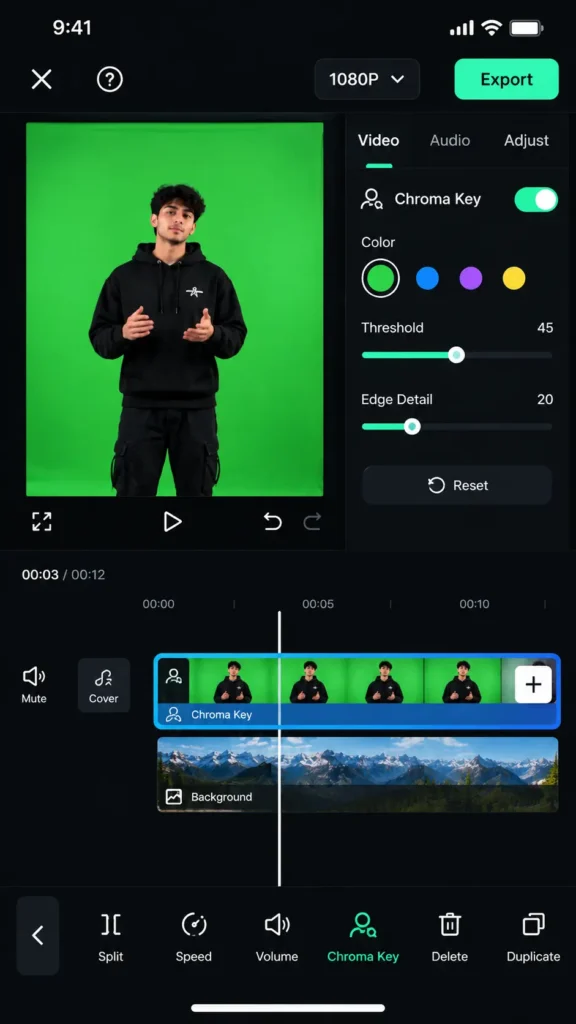
8: In the layer tool options, tap Chroma Key.
9: Toggle it on (tap Enable).
10: KineMaster usually detects the green automatically. If it doesn’t, use the color picker (eyedropper) tool and tap directly on the green area in your footage to specify the exact color to remove.
11: Adjust the threshold sliders to control how much of that color is removed. Move them gradually while watching the preview you want the green gone, but your subject should still look natural, not choppy or fuzzy.
12: If the edges around you look rough, use the Detail/Edge slider to smooth them out.
13: Once it looks clean, tap the checkmark to confirm. Your original background is now gone, replaced by whatever you added in Step 3.
Method 2: Changing the Background Without a Green Screen
Without a green screen, you can’t achieve a true, clean background removal but you can still layer a new background behind an image or clip that already has transparency like a PNG cutout or graphic, or blend two clips together for a similar effect.
- Open KineMaster and start a new project.
- Tap Media and add your new background (photo or video) first this is your base layer.
- Tap Layer, then Media again, and add your overlay this could be a transparent PNG image or a video clip you want blended in.
- Resize and position the overlay so it sits naturally on top of the background.
- Tap the overlay layer and look for the Blend option.
- Try different blend modes Screen, Multiply, or Lighten and see which makes the overlay sit most naturally against the new background. Adjust the opacity slider if the overlay looks too harsh or too faded.
- Once it looks right, tap the checkmark to lock it in.
Tips to Save Yourself Some Headaches
- Chroma Key works best with a pure, evenly lit green or blue screen. Dull or patchy backgrounds make for a messy cutout.
- Avoid wearing colors that match your screen those parts of you will disappear too.
- Choppy edges are almost always a threshold slider issue. Adjust gradually, checking the preview as you go.
- Preview your video at full screen after every change chroma key can look different zoomed in versus zoomed out.
Frequently Asked Questions
Can I change the background without a green screen at all?
Not with a true, clean removal but you can fake the effect by layering transparent overlays or blending clips together (see Method 2).
Why does my chroma key look choppy around the edges?
This is usually a threshold or detail slider issue. Adjust them slowly and watch the preview closely.
Does Chroma Key work with any background color?
Green and blue work best because they’re rarely close to natural skin tones or clothing colors, which makes it easier for the app to isolate and remove them cleanly.
1 thought on “How to Change a Video Background in KineMaster”
Comments are closed.