No lag Guide 2026 Introduction:
Smooth Slow motion videos are everywhere on Instagram Reels, YouTube Shorts, and TikTok. A well-timed slow-mo shot can turn a simple clip of walking, dancing, or a car passing by into something that looks cinematic.
But there’s a common problem. When new editors slow down a clip in KineMaster, the video often lags, stutters, or looks choppy instead of flowing smoothly. The good news is that this is almost always fixable, and it usually has nothing to do with your phone being slow.
In this guide, you’ll learn how to make professional, smooth slow-motion videos in KineMaster without lag. We’ll cover the science behind smooth slow-mo, a step-by-step tutorial, pro tips, common mistakes, and answers to frequently asked questions.
Secret Trick for Smooth Slow Motion on Mobile
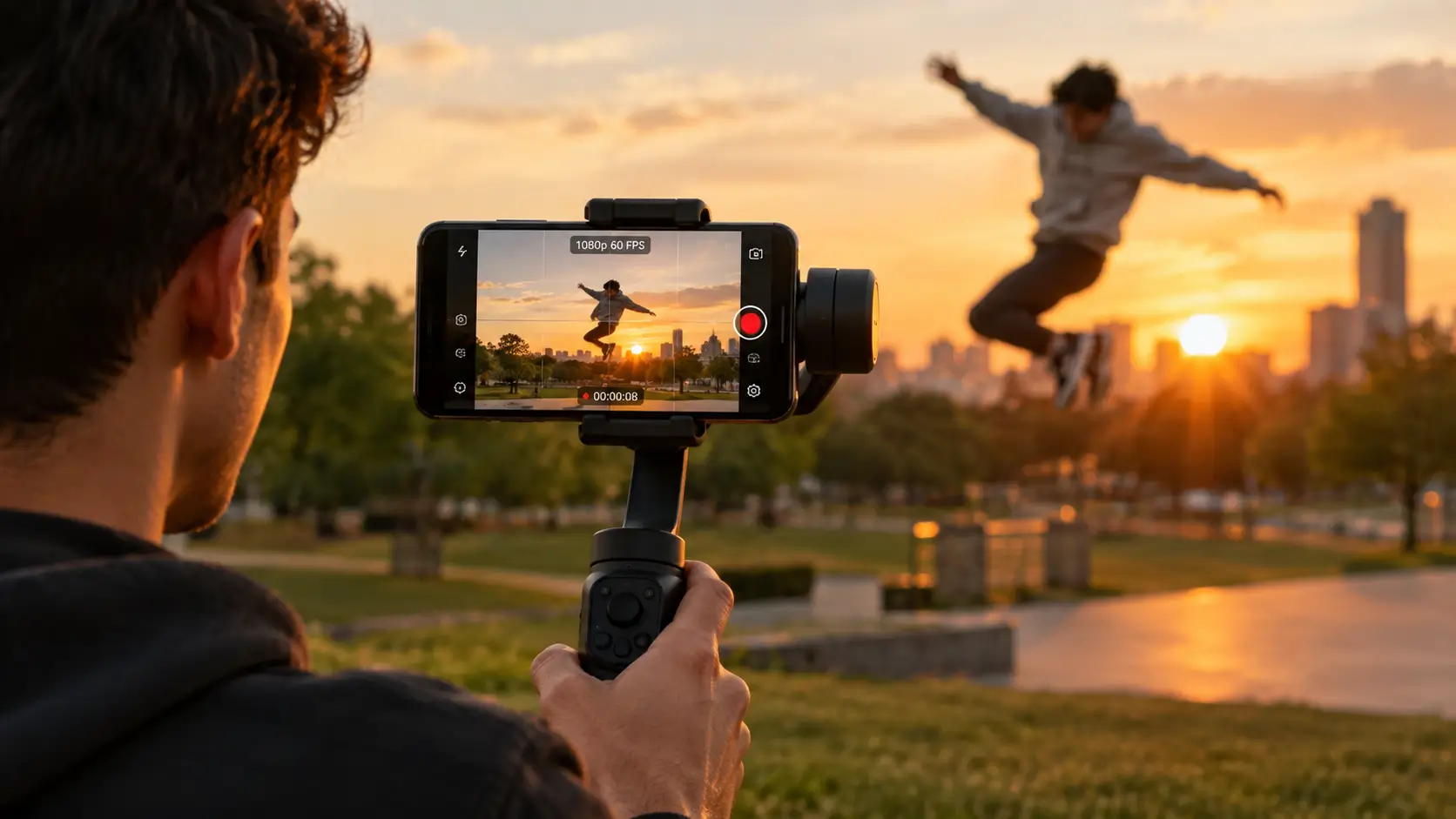
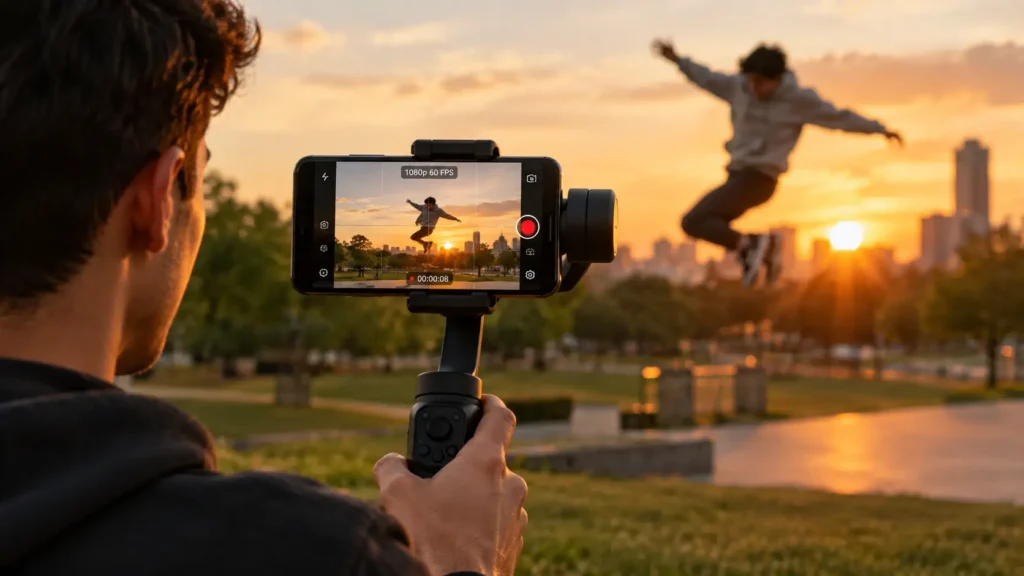
The most important factor for smooth slow motion is recording your video at 60 FPS (frames per second) or higher. If you slow down a 24 or 30 FPS clip too much, it will always look choppy, no matter which editing app you use.
Why does this happen?
Every video is a series of still images (frames) played quickly. When you slow a video down, those frames stay on screen longer, so fewer new frames appear each second.
- A 30 FPS clip slowed to 0.5x plays at about 15 new frames per second.
- The same clip slowed to 0.25x plays at only about 7 to 8 new frames per second.
At that point, your eyes can see the gaps between frames, and the motion looks like a slideshow. A clip recorded at 60 FPS or higher has far more frames to work with, so the motion stays fluid even after slowing down.
Best recording settings for slow motion
| Recording FPS | Best Slow-Mo Speed | Result |
| 24-30 FPS | 0.75x to 0.5x (limited) | May lag or look choppy |
| 60 FPS | 0.5x | Smooth |
| 120 FPS | 0.25x | Very smooth, cinematic |
| 240 FPS | 0.1x to 0.25x | Ultra smooth (phone support required) |
Quick rule:
Multiply your recording FPS by the slowdown speed. For example, 120 FPS × 0.25x gives you roughly 30 FPS of real motion, which looks smooth. If the result drops below about 24 FPS, the video will start to look choppy.
How to set your phone camera?
- Open your phone’s Camera app and go to Settings.
- Choose Video > 1080p at 60 FPS (or 120 FPS if your phone supports it).
- If your phone has a built-in Slow Motion mode, you can use it too. It usually records at 120 or 240 FPS automatically.
- Lock exposure and focus by tapping and holding on your subject. This prevents brightness flickering during slow-mo.
Steps to Apply Slow Motion in KineMaster
Step 1: Import and Split the Video
- Open KineMaster, create a new project, and import your video.
- Move the playhead to the exact moment where you want the slow motion to start.
- Tap the video layer, open Scissors (Trim/Split), and choose “Split at Playhead.”
- Move the playhead to the point where the slow motion should end and split again.
Why split?
This lets you slow down only the best moment (a jump, a turn, a smile) while the rest of the clip plays at normal speed. It keeps your video dynamic and avoids unnecessary choppiness.
Step 2: Adjust Speed Control
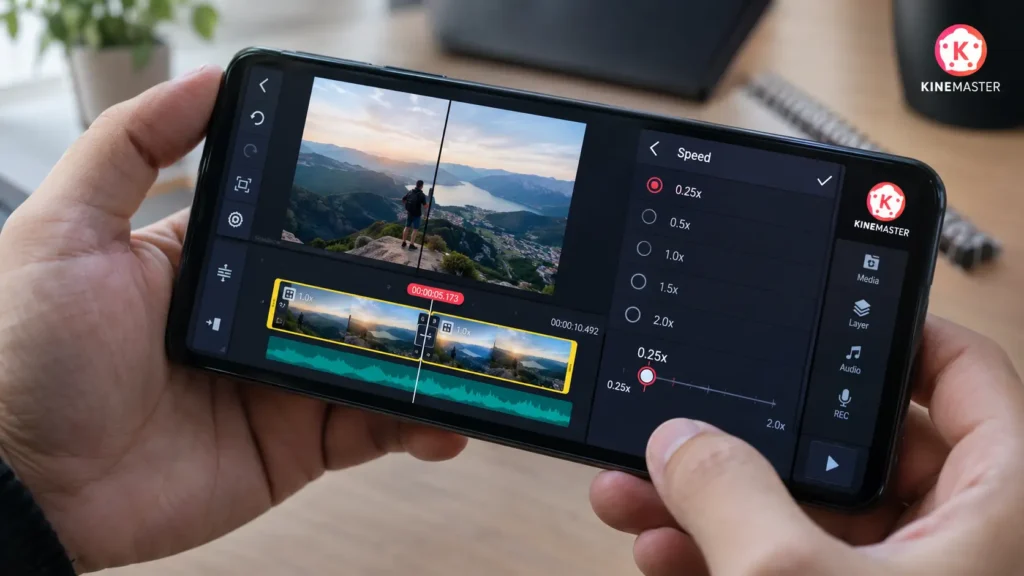
- Tap the middle (split) clip and select the Speed option from the right-hand menu.
- Drag the slider to 0.5x or 0.25x.
- Play the clip in preview to check how it looks.
Note: Don’t go slower than 0.25x, or the video will look choppy, especially if it was recorded at 30 FPS.
Which speed should you choose?
- 0.5x: Subtle, natural slow motion. Works with 30 to 60 FPS footage.
- 0.25x: Dramatic, cinematic slow motion. Best with 120 FPS footage
Step 3: Enable Keep Pitch
- Inside the Speed settings, look for the “Keep Pitch” option and turn it ON. Without it, the audio sounds deep, heavy, and unnatural when the clip slows down.
- If you don’t need the original audio, mute the clip and add background music instead. Slow-mo with music usually feels far more cinematic than slow-mo with distorted sound
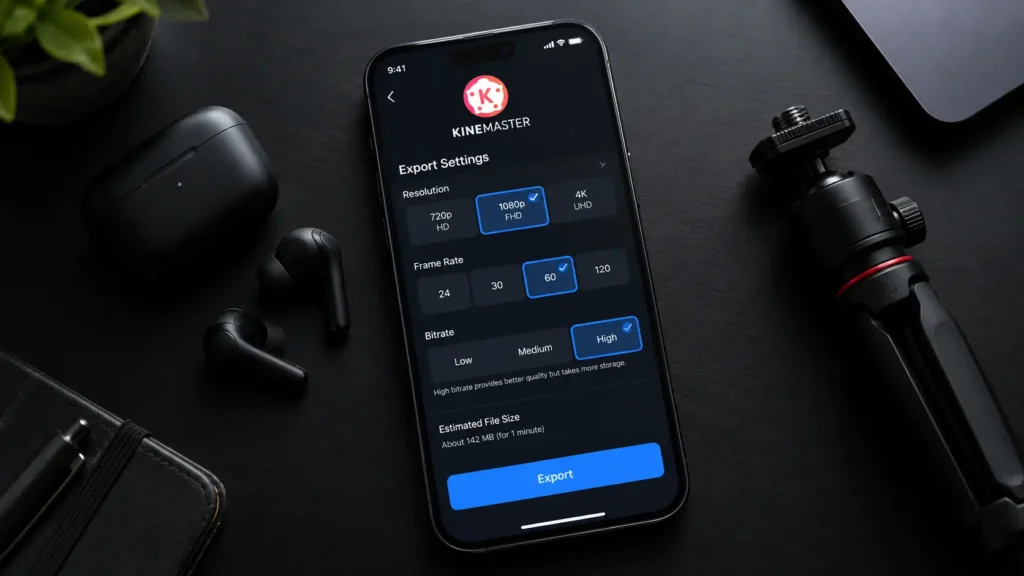
Step 4: Export in High Quality (Bonus Step)
- When exporting, choose 1080p resolution (or higher if your phone can handle it).
- Set the frame rate to 60 FPS. Exporting a 60 FPS video at 30 FPS will reduce smoothness.
- Set the bitrate to High or Highest for sharper quality.
- Save and watch the final video on your phone before posting.
Pro Tips and Tricks for Cinematic Slow Motion
- Create a speed ramp effect. Split the clip into three parts: normal speed (1x), slow motion (0.25x to 0.5x), then normal or fast again (1.5x to 2x). The change in speed makes the slow-mo moment hit harder.
- Sync with the beat. Match the start of your slow-mo to a music drop or beat. This is one of the most popular styles on Reels and Shorts.
- Shoot in good lighting. High FPS uses faster shutter speeds, so low light adds noise and blur. Shoot in daylight or bright, even lighting.
- Keep your footage steady. Shaky hands are much more obvious in slow motion. Use a tripod or gimbal, or hold your phone with both hands and keep your elbows close to your body.
- Add color grading and filters. A light contrast boost, a warm tone, or a teal-orange look makes slow-mo clips feel like movie footage. Don’t overdo it.
- Use cinematic black bars. Add black overlays at the top and bottom of the frame for a widescreen, movie-style look.
- Choose the right subject. Slow motion works best on clear, expressive movement: hair flipping, walking, dancing, water splashes, or sports actions.
- Shoot fast action at high FPS. For running, jumping, or anything quick, always record at 60 FPS or higher before slowing the clip down.
- Add a subtle zoom. A slow zoom-in (using KineMaster’s Pan and Zoom or keyframes) on the slow-mo section adds emotion and depth.
- Keep KineMaster updated. New versions include performance improvements and bug fixes that can reduce lag. If your version has a frame interpolation or smooth slow-mo option, try it on your clip.
KineMaster Video Lag Fix: Common Mistakes
- Slowing a 30 FPS video to 0.1x or 0.25x. This is the biggest mistake beginners make.
- Exporting at a low frame rate (24 or 30 FPS) when the footage was shot at 60 FPS.
- Running out of phone storage. Keep at least 2 to 3 GB free for smooth editing and exporting.
- Too many layers, effects, and overlays. Apply slow motion first, then add effects, text, and music.
- Using an outdated KineMaster version or running many apps in the background.
- Confusing preview lag with export lag. Sometimes the clip stutters in the editing preview but exports perfectly smooth. Always export and check the final video before deciding it’s broken.
- Using very large source files. 4K footage can slow down older phones. Try editing at 1080p if your preview keeps freezing.
Quick fixes for preview lag
| Close all background apps. |
| Clear KineMaster’s cache from your phone settings. |
| Restart your phone. |
| Reduce the number of clips and layers in the project. |
| Update KineMaster to the latest version. |
Frequently Asked Questions (FAQs)
Q1. How do I apply slow motion in KineMaster?
Import your video, split the clip where you want the slow motion, open the Speed option, and set the speed to 0.5x or 0.25x.
Q2. Why does my slow motion video lag in KineMaster?
The most common cause is low FPS (24 or 30). Record your video at 60 FPS or 120 FPS instead. Other causes include low storage, too many effects, and an outdated app.
Q3. What is the best FPS for smooth slow motion?
60 FPS is a good starting point. 120 FPS and 240 FPS give even smoother, more cinematic results.
Q4. Can I make a 30 FPS video look smooth in slow motion?
To a limited extent. Stay around 0.75x to 0.5x. Beyond that, it may look choppy.
Q5. What does “Keep Pitch” do?
It prevents the audio from sounding deep or distorted when the video is slowed down.
Q6. What are the best export settings for slow-mo Reels?
1080p resolution, 60 FPS, and a high bitrate.
Q7. Why does my video look smooth in KineMaster but choppy on Instagram?
Social apps compress videos. Export at the highest quality, keep the frame rate at 60 FPS, and avoid uploading files that are heavily compressed already.
Q8. Can I slow down only part of a video?
Yes. Split the clip at the start and end of the section you want, then apply the speed change only to that middle clip.
Q9. Is slow motion in KineMaster free?
Basic speed control is available in the free version, but exports may include a watermark unless you use the premium version.
Conclusion
The real secret to smooth slow motion is high-FPS recording, the right speed (0.5x or 0.25x), Keep Pitch turned ON, and the right export settings. Add a speed ramp, good lighting, steady footage, and a beat-matched soundtrack, and your clips will look cinematic.
Follow these steps and tips, and you can create smooth slow-motion videos in KineMaster without any lag. Try it on your next Reel or Short and see the difference yourself