Introduction
Custom transitions in KineMaster help you turn a boring video into a smooth, cinematic edit. A transition is the change that happens between two clips, and with free effects from the KineMaster Asset Store, you can add custom transitions in KineMaster in just a few minutes. If you want to turn a boring video into something cinematic and professional, transitions and effects are essential. A transition is the change that happens between two video clips. A good one makes your edit feel smooth and intentional, and a bad one makes it feel amateur.
KineMaster’s Asset Store lets you download extra effects, overlays, stickers, and music, and its built-in transitions include 3D transitions, wipes, and fades. In this guide, you’ll learn how to download free effects, apply transitions between clips, and adjust timing for a clean result. You’ll also find pro tips, a comparison table, pros and cons, and FAQs.
How to Download Free Effects for Custom Transitions in KineMaster
KineMaster has its own Asset Store where you can download transitions, effects, overlays, and more. Many items are free, though some are marked premium.
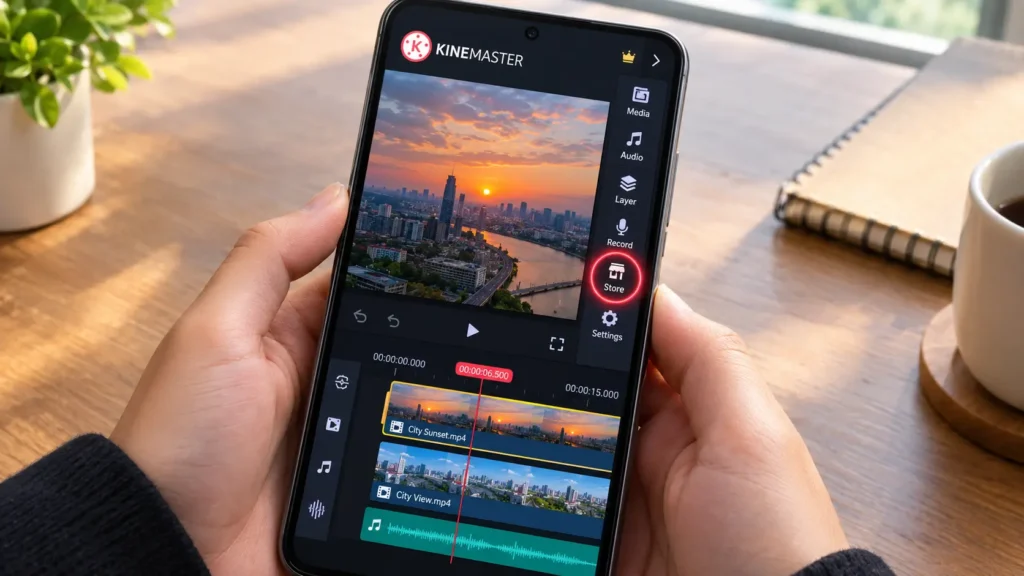
- Open KineMaster and tap the Store icon (it looks like a small shop or house) on the right side.
- From the left menu, go to the Transitions or FX (Effects) tab.
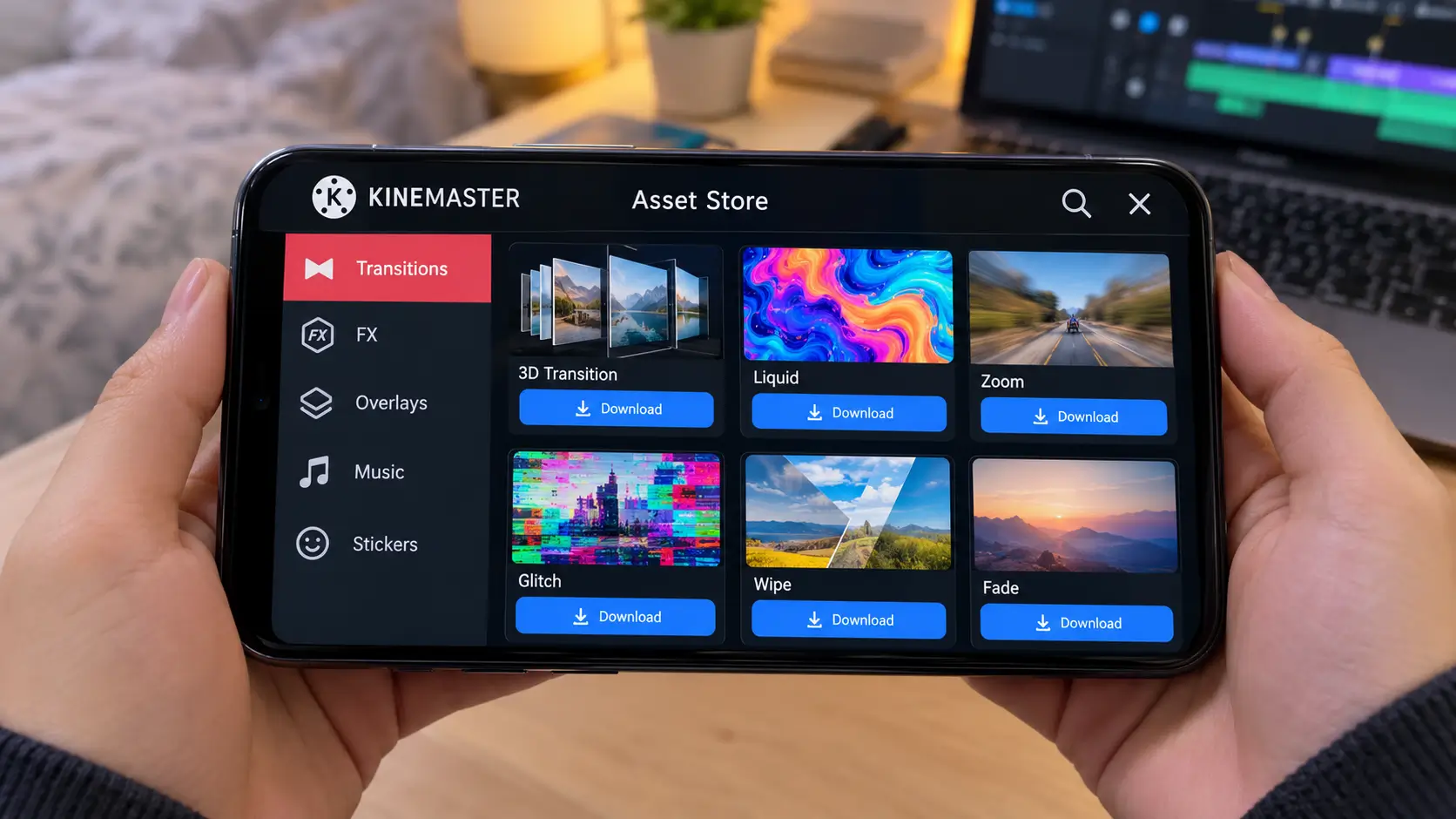
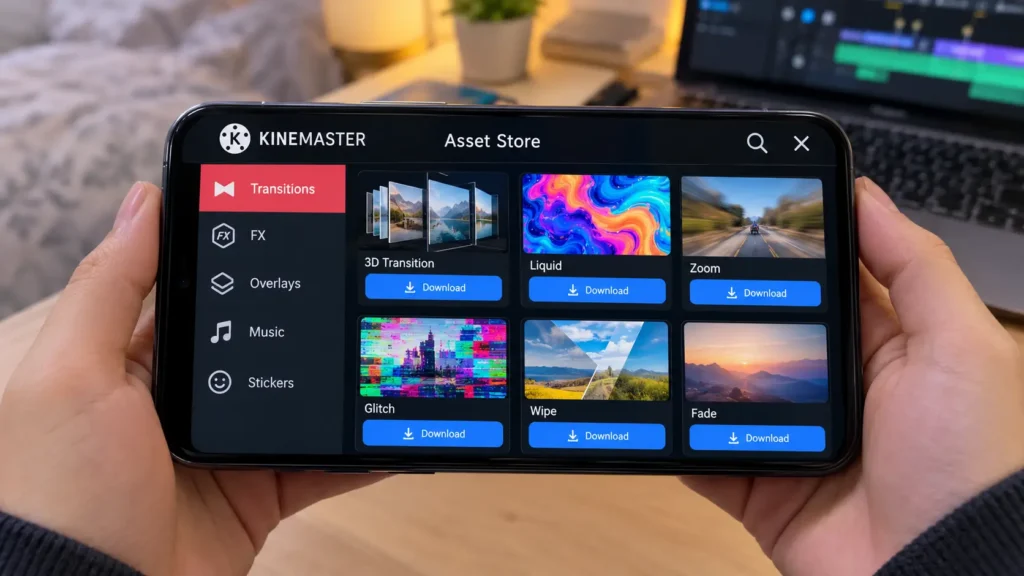
- Pick an effect you like (for example, 3D Transition, Liquid, or Zoom) and tap Download.
- Wait for the download to finish. The effect is now saved inside your KineMaster project tools
How to spot free vs. premium assets: Premium items usually show a label or crown icon. Premium downloadable assets are available to subscribers, so if you see a locked item, you can simply pick a free alternative.
How to Add Custom Transitions in KineMaster Between Two Clips
Step 1: Tap the Icon Between Clips to Add a Custom Transition
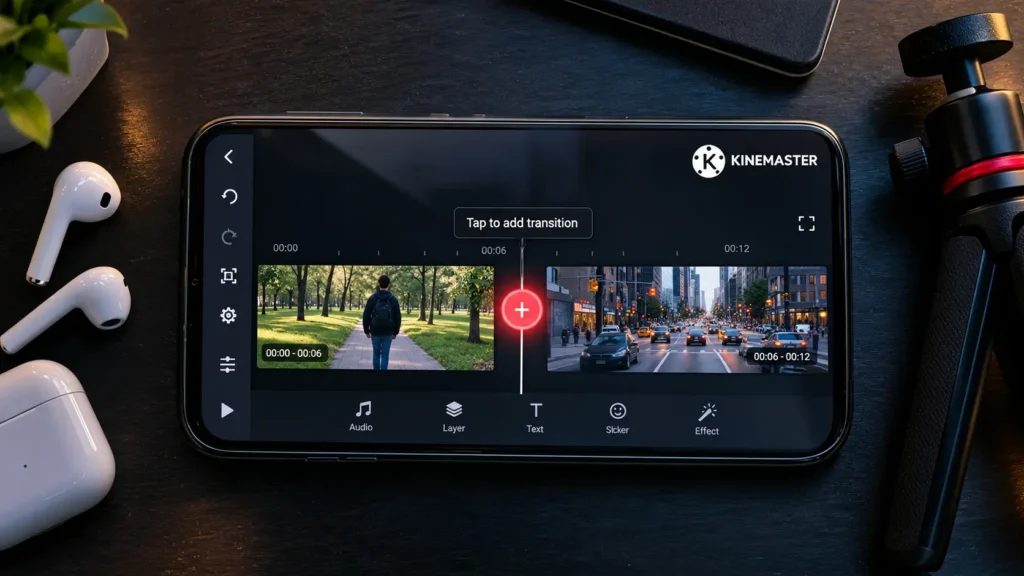
- Place two separate video clips side by side on the timeline.
- A Plus (+) icon appears in the gap between them. Tap it.
2: Choose Your Downloaded Custom Transition
- The transitions list opens on the right side of the screen.
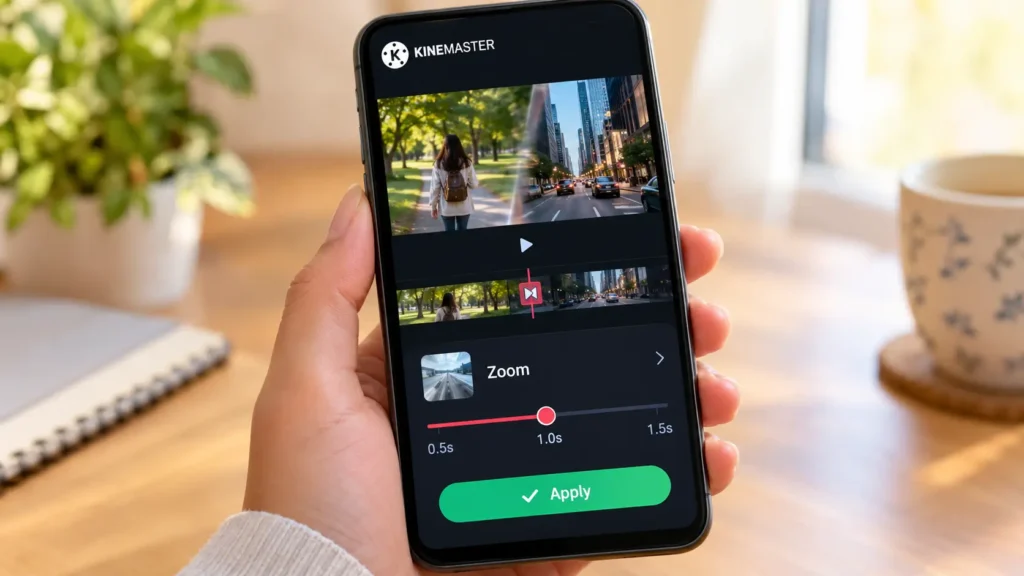
- Tap one of the transitions you downloaded from the Asset Store to apply it.
- Use the preview to check how it looks before moving on.
Step 3: Adjust Custom Transition Timing
- After selecting a transition, a timing bar appears at the bottom (for example, 0.5s, 1.0s, or 1.5s).
- Keep it at 0.5s or 1.0s so the transition feels fast and smooth. Slow transitions usually look awkward and drag down the pace.
Which Transition Should You Use?
Quick Comparison
| Transition Type | Best For | Recommended Duration | Pro Tip |
| Fade | Calm, emotional, or storytelling scenes | 0.5s to 1.0s | Safe choice when you’re unsure |
| Wipe | Travel vlogs, scene changes | 0.5s | Match the wipe direction to your subject’s movement |
| Zoom | Reels, dance, and energetic clips | 0.5s | Works best when both clips have movement |
| 3D Transition | Intros, gaming, and product videos | 0.5s to 1.0s | Use sparingly, since it draws a lot of attention |
| Liquid / Glitch style | Music edits, trending Reels | 0.5s | Sync to a beat or drop |
Choose the style that fits your video’s mood. The best custom transitions in KineMaster are usually short and match the music.
Pro Tips for Better Custom Transitions in KineMaster
- Don’t use a different transition on every cut. Pick 2 or 3 styles for the whole video. Consistency looks professional.
- Match transitions to the mood. Fades suit emotional clips, while zooms and glitches suit fast, energetic edits.
- Sync with the music. Place transitions on beats or drops. This is the biggest difference between beginner and pro edits.
- Keep it short. Aim for 0.5s on fast videos and 1.0s on calmer ones.
- Use motion to hide the cut. Transitions work best when both clips have movement in the same direction, such as a pan, a turn, or a walk.
- Add effects after transitions. Finish your cuts and transitions first, then add overlays, color filters, and text. This keeps the timeline lighter and the preview smoother.
- Don’t overload your layers. Too many effects can cause lag on lower-end phones. Close background apps and keep free storage available.
- Preview on the full screen. Check each transition at full size before exporting, since small mistakes are easy to miss.
- Use free assets wisely. Download only the effects you actually need so your Asset Store list stays clean and easy to scroll.
- Export and watch the final video. Transitions can look different in the final render than in the editing preview
- Use only 2 or 3 styles of custom transitions in KineMaster in one video so it looks consistent.”
Pros and Cons of Custom Transitions in KineMaster
Pros
- Large Asset Store with many transitions, effects, and overlays
- Easy to apply: just tap the Plus (+) icon between clips
- Adjustable timing for each transition
- Works well on mobile, so no PC is needed
- Free trial mode lets you practice and create for personal use
Cons
- The free version adds a “Made with KineMaster” watermark to exported videos .
- Some Asset Store items are premium and need a subscription
- Too many effects can slow down older or low-storage phones
- Availability and menu names can change between app versions
Common Mistakes to Avoid
- Using very long transitions (2s or more) that slow down the video
- Using too many different effects in one video
- Ignoring the music beat when placing transitions
- Downloading dozens of unused assets, which clutters the store list and uses storage
- Applying transitions between clips that don’t match visually, like very different lighting or angles
Frequently Asked Questions
Q1. How do I add a transition in KineMaster?
Place two clips next to each other on the timeline, tap the icon between them, choose a transition, and confirm. In some versions the icon between clips appears as a grey square with a line in the middle. In others it appears as a Plus +.
Q2. Where can I download free transitions and effects?
Open the Asset Store from the Store icon, go to the Transitions or FX tab, and tap Download. Some items are premium.
Q3. What types of transitions does KineMaster have?
Options include 3D transitions, classic, fun, picture-in-picture, presentation, and text transitions. The exact list depends on your app version and what you’ve downloaded.
Q4. Can I create custom transitions?
Yes, to a degree. Keyframe animation lets you change position, size, or rotation at different points on the timeline, which you can use to build your own movement-based transitions.
Q5. Is KineMaster free, and does it add a watermark?
Trial mode is free for personal, non-commercial use but adds a “Made with KineMaster” watermark to all videos. A subscription removes it and unlocks premium assets
Q6. What is the best transition duration?
0.5s to 1.0s works for most videos. Long transitions can drag the pace, especially in fast-paced content.
Conclusion
Adding custom transitions in KineMaster is easy once you know where to find the Asset Store and how to set the timing. Great transitions don’t need a complicated workflow. Download the right effects from the Asset Store, tap the Plus (+) icon between clips, choose a transition that fits the mood, and keep the timing at 0.5s to 1.0s. Add beat sync and a consistent style, and your videos will look far more polished.
Keep in mind that the free version includes a watermark and some premium assets, so choose free items and test your export before posting. Try these steps on your next edit and see the difference!