
Step by Step No Skipping
you’ve ever typed Urdu text in KineMaster and it came out looking weird letters not joining proIf perly, everything looking disconnected and ugly you’re not alone. This happens because KineMaster doesn’t come with a proper Nastaleeq Urdu font by default. The good news? Fixing it takes less than 5 minutes once you know where to tap.
Below are two ways to do it. Try Method 1 first it’s built right into the app. If you want a specific font style (like Jameel Noori Nastaleeq), jump to Method 2.
Method 1: Get the Urdu Font Already Inside KineMaster
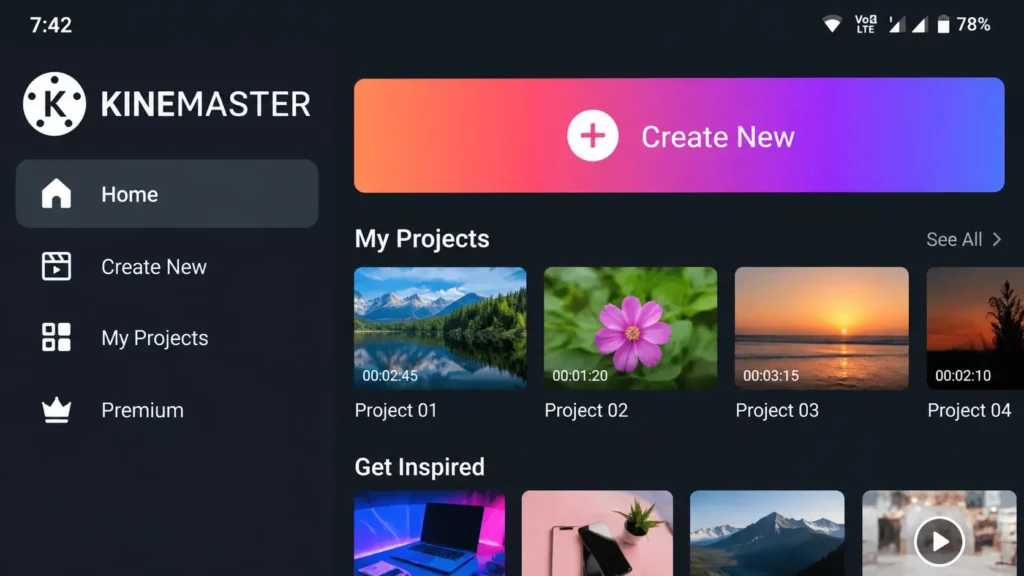
tep 1. Open the KineMaster app on your phone.
Step 2. Either tap on a project you’re already editing, or start a fresh one by tapping the + button.
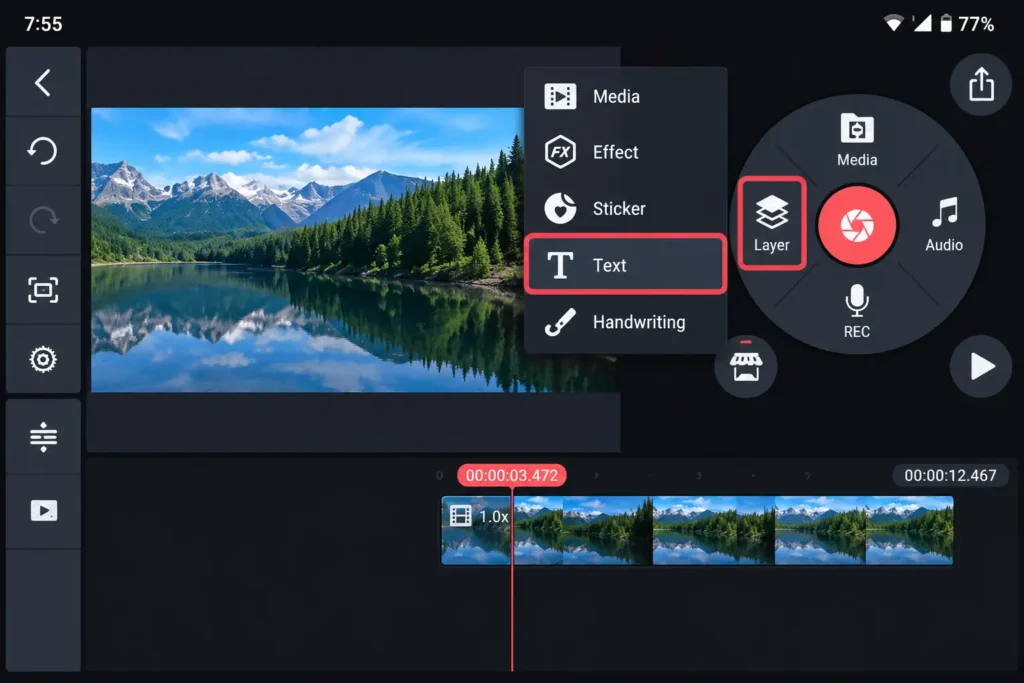
Step 3. Once you’re inside the editor, look at the row of icons on the right side of your screen (or bottom, depending on your phone). Find the one that says Layer.
Step 4. Tap Layer.
Step 5. A small menu will pop up. From that menu, tap Text.
Step 6. A text box will now appear in the middle of your video preview, and a keyboard will pop up so you can type something (you can type anything for now, we’ll fix the font first).
Step 7. Look above the keyboard or in the text tool options you’ll see something like a font name written there (usually the default one). Tap on that font name.
Step 8. This opens the font list. At the top or side of this list, there’s usually a small icon that looks like a shopping bag or a “+” sign. That’s the Asset Store. Tap it.
Step 9. Inside the Asset Store, you’ll see different categories Trending, English, Numbers, etc. Scroll or swipe until you find Urdu. Tap on it.
Step 10. You’ll now see Urdu fonts listed, and the most common one is called Noto Nastaleeq Urdu. Tap on it.
Step 11. Tap the Download or Install button next to it. Give it a few seconds depending on your internet, this shouldn’t take long.
Step 12. Once it’s done downloading, go back to your text box (tap the back arrow or close the store).
Step 13. Tap on the font name again like you did in Step 7.
Step 14. This time, scroll down you should now see the Urdu font sitting there in your installed fonts. Tap on it to select it.
Step 15. Now type your Urdu text. It should look properly joined this time, not broken apart.
That’s it. Done. You’re now writing clean Urdu in KineMaster.
Wants to master your eiditingskills?
Chech out our compiete guide on how to change video background in “kinemaster“
Method 2:
Add Your Own Custom Urdu Font (like Jameel Noori Nastaleeq)
Use this method if you already have a favorite font in mind that isn’t inside KineMaster’s store.
Step 1. First, go find and download the font you want. It needs to be a .ttf file that’s the file format that works. Save it wherever it’s easy for you to find later, like your Downloads folder.
Step 2. Open KineMaster and go into your project (same as before open one or create a new one).
Step 3. Tap Layer, then tap Text, just like Method 1.
Step 4. A text box shows up. Tap on the font name in the text options.
Step 5. This time, instead of tapping the Asset Store icon, look for a folder icon or something that says “My Fonts” or “Import.” It’s usually right next to the Asset Store button.
Step 6. Tap it. This opens your phone’s file manager.
Step 7. Browse through your files until you find the .ttf font you downloaded in Step 1. Tap on it to select it.
Step 8. KineMaster will now add this font to your list. Tap it to apply it to your text box.
Step 9. Since Urdu is written right-to-left, go into your text settings and look for an option that says Alignment or Direction. Turn on Right-to-Left (RTL).
Step 10. Now type your Urdu text. If everything worked, your letters should join up properly and flow the right direction.
A Few Things Worth Knowing
If your text still looks broken even after installing the font, nine times out of ten it’s because RTL wasn’t turned on. Go double-check that setting.
Not every Urdu font works well in videos. Fonts that are too thin can get hard to read once your video is exported and compressed, so go for bold or semi-bold styles if the text is going to sit on top of a busy background.
Before you commit to a font, preview your text on the actual video first. Sometimes a font looks great in the selection menu but doesn’t sit well once it’s placed over footage.
Quick Questions People Usually Ask
My Urdu letters look separated even with the font installed why?
Turn on RTL (right-to-left) in your text alignment settings. That’s almost always the fix.
Can I use literally any Urdu font I find online?
As long as it’s a .ttf file, yes just import it through Method 2 above.
Do I need to root my phone to add these fonts?
Nope. Everything above works on a completely normal, unrooted phone.
5 thoughts on “How to Install Urdu Font in KineMaster”