
Why Your KineMaster Video Will Not Save or Export, and How to Fix It
You spend an hour on an edit, tap Save as Video, and the progress bar freezes at 78%. Few things feel worse. If your KineMaster video will not save, the cause is usually simple, and you can fix it without losing your project. In this guide, you will learn why exports fail, which fixes to try first, and what to send to support if nothing works.
Why Does a KineMaster Export Fail?
Exports fail for a handful of common reasons. First, your phone may be low on storage. Second, you may have locked the screen while the video was saving. Third, a file in your timeline may be missing. Beyond these, a resolution that is too high for your device, an outdated app, or heavy background apps can also cause trouble.
You may also see an error such as “An error occurred while exporting. Please try again. Codec init failed.” This message appears when the app cannot start the video encoder. The fixes below solve it in most cases.
Quick Checks Before Anything Else
KineMaster’s own support team starts with three checks. Do not lock your phone while the video saves, make sure the internal storage has enough space, and confirm that no files are missing from the timeline. Therefore, run through these three first. Often, that is all it takes.
Fix 1: Free Up Storage
A full phone is the most common cause of a stuck export. KineMaster does not publish an exact number, so treat the following as a rule of thumb. For short HD clips, keep at least 2 to 3 GB free. For long or 4K projects, keep more.
Here is a simple way to estimate the size. A video exported at 20 Mbps takes roughly 150 MB per minute. Because the app may also need extra working space while rendering, leaving a comfortable margin is wise. Delete old downloads, clear chat media, or move files to a memory card or cloud storage.
Fix 2: Restart, Close Apps, and Analyze Your Device
Next, give your phone a clean start.
- Reboot your device.
- Quit all open apps.
- Open KineMaster and tap Create, then Settings, then Device performance information.
- Tap Analyze Device Performance.
- When the analysis finishes, try saving the project as a video again.
This lets KineMaster adjust its settings to your phone’s hardware.
Fix 3: Lower the Resolution or Bitrate
Sometimes your phone simply cannot handle the settings you chose. KineMaster suggests saving at a lower resolution, a lower bitrate, or both. For example, step down from 4K to 1440p, then to 1080p, and test after each change.
This matters most with 4K. Many phones can record 4K, yet not all of them can edit and save it in KineMaster. As a result, a 1080p export is often the reliable choice. For social media, it also looks sharp enough.
Fix 4: Repair Missing Media Files
Look at your timeline. If a clip shows slanted lines, KineMaster cannot find that file. This happens when the image or video was moved, deleted, or renamed. In that case, saving will fail.
You can fix it in one of three ways:
- Put the original file back in its previous folder.
- Tap Replace Media and choose another file.
- Delete the missing clip from the project.
After any one of these, you can preview and save the project again.
Fix 5: Re-encode Screen Recordings and Videos From Other Devices
Clips from screen recorders or other phones can cause export problems. If your project includes them, KineMaster recommends re-encoding those clips first. In practice, this means making a lower-resolution copy with KineMaster’s Transcode tool and using that copy in your project. Afterward, replace the original clip and export again.
Fix 6: Update the App, Then Reset It
If none of the earlier fixes work, update and reset the app.
- Install the latest version of KineMaster from the Google Play Store.
- Open KineMaster, tap Create, then Settings, then Reset app.
- Reboot your phone.
- Open KineMaster first, run Analyze Device Performance again, and then export.
Resetting does not delete your projects, according to KineMaster support. Even so, back up any important project before you try it.
Still Not Working? Contact Support
If the problem continues, email KineMaster support from the app. Describe the problem in detail, including any error message and the percentage where saving stopped. In addition, attach screenshots of the error and of your Device performance information screen. With these details, the team can help you much faster.
Quick Guide: Symptom and Likely Fix
| What you see | Likely fix |
|---|---|
| Export freezes halfway | Free up storage, keep the screen unlocked |
| “Codec init failed” error | Lower the resolution, then reboot |
| Slanted lines on a clip | Replace or delete the missing media |
| Fails only with screen recordings | Re-encode those clips |
| Nothing saves at all | Update and reset the app |
Frequently Asked Questions
Why won’t my KineMaster video save or export?
Usually, the phone is low on storage, the screen was locked during saving, or a file is missing from the timeline. A resolution too high for your device is another common cause.
Why does my KineMaster export get stuck or fail halfway?
This often points to storage pressure, background apps, or settings your phone cannot handle. Free up space, close other apps, and try a lower resolution. When you contact support, mention the percentage where it stops.
I can’t save one of my projects as a video. How can I fix this?
Check storage and the timeline for missing files first. Then reboot, run Analyze Device Performance, and try a lower resolution or bitrate. If the project contains screen recordings, re-encode them.
Will resetting KineMaster delete my projects?
No, according to KineMaster support. Nevertheless, back up important projects before resetting, as a precaution.
How much free storage do I need before exporting a video?
There is no official number. As a rule of thumb, keep 2 to 3 GB free for short HD videos, and more for long or 4K projects.
Should I lower the resolution or bitrate if an export keeps failing?
Yes. This is one of the official fixes. Step down one level at a time, for example from 4K to 1440p and then to 1080p.
What should I do if a media file is missing from my project timeline?
Restore the file to its original folder, replace it with the Replace Media button, or delete the clip from the project. After that, the export should work.
Conclusion
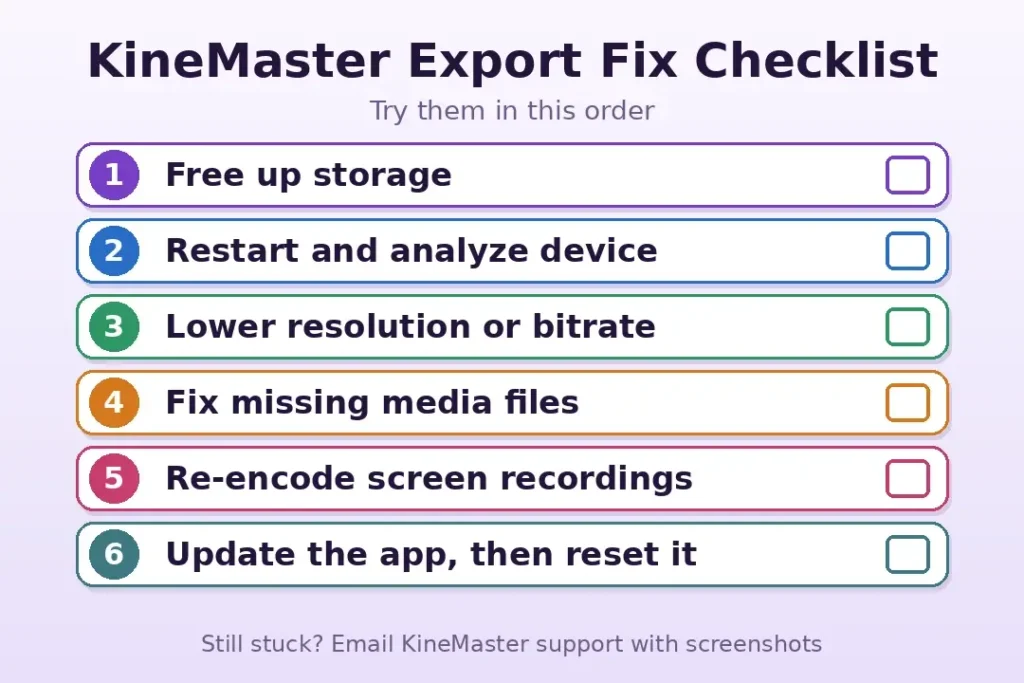
When your KineMaster video will not save, start with the basics: free storage, an unlocked screen, and no missing files. Then restart, analyze your device, and lower the resolution if needed. If the problem remains, update and reset the app, and contact support with screenshots. Follow these steps in order, and your export should finish smoothly.
Related Articles
- KineMaster Audio Problem: How to Fix Sound Issues Easily
- How to Make Smooth Slow Motion Videos in KineMaster
- How to Remove the KineMaster Watermark Legally