
How to Remove the KineMaster Watermark Legally (Premium, Restore, and the Cropping Workaround)
Few things are more annoying than finishing a perfect edit and then spotting a logo stuck in the corner. If you want to remove the KineMaster watermark, the good news is that there is a safe and legal way to do it. However, many websites push risky shortcuts that can harm your phone. In this guide, you will learn what actually works, what to do when the watermark returns after you subscribe, and how far the cropping workaround really goes.
Why Does KineMaster Add a Watermark?
KineMaster is free to download, but the free version places its logo on your exported videos. A Premium subscription removes the ads and the watermark. In other words, the watermark is not a bug. It is simply a limit of the free plan.
Method 1: Subscribe to KineMaster Premium (The Official Way)
Premium is the only route that the developer itself supports, so it is also the safest one.
- Open KineMaster and tap Create.
- Tap the Crown icon in the upper left of the screen. This is where the purchase screen shows prices in your local currency.
- Choose the monthly or annual plan.
- Confirm the payment through Google Play or your Apple ID.
Which plan should you pick? A monthly plan suits a short project, whereas the annual plan works out cheaper if you edit regularly. Menu names can vary slightly between app versions, so look for the Crown icon if your screen looks different.
Two things are worth knowing. First, videos you exported earlier stay watermarked, so you need to re-export them after subscribing. Second, if you cancel later, you can still use Premium for the period you already paid for.
Method 2: Restore Your Premium Purchase (When the Watermark Comes Back)
Sometimes you have already subscribed, yet the watermark appears again. Usually, the app has simply lost track of your purchase. Therefore, restoring it is the first fix to try.
On Android:
- Open KineMaster, tap Create, and then tap the Crown icon. Check whether your subscription details appear there.
- Make sure the Google account that paid for Premium is the one signed in on your phone.
- Quit KineMaster completely, or restart your phone.
- Open the Crown screen again and confirm the subscription shows correctly.
On iPhone:
- Open the Settings app, tap your name, and check that the Apple ID matches the one you used to subscribe.
- Open KineMaster, tap Create, tap the Crown icon, and then tap Already Purchased? This is the official restore route on Apple devices.
- Alternatively, go to Settings, then Information, then My Information. If the status says you are a free user, tap Restore Purchase.
If none of this works, contact KineMaster support through the question-mark button in the app. Send them your Google account list and a screenshot showing the watermark.
Method 3: The Cropping Workaround (Free, but With Limits)
This method costs nothing, yet it comes with a catch. The watermark is added at the moment of export. For that reason, cropping or zooming inside your KineMaster project does not remove it.
Instead, follow this order:
- Export your video from KineMaster as usual.
- Open the exported file in another editor or your phone’s gallery editor.
- Zoom in or crop until the watermark falls outside the frame.
- Save the new video in the highest quality available.
Before you rely on this trick, keep three limits in mind. To begin with, you lose the edges of your picture, so any text or subject near the corner may get cut off. Moreover, zooming in and re-saving the file reduces sharpness slightly. Finally, the trick works best when you leave extra space around your subject while filming. As a result, it suits casual posts better than polished or client work.
Is a KineMaster Mod APK Safe for Watermark Removal?
No, we do not recommend it. A modified APK comes from an unknown source, so you cannot check what is hidden inside it. In addition, it can expose your phone to malware or data theft, and it usually breaks after an app update. Meanwhile, using modded versions may also violate the original app’s terms of service. Because the safe options above are available, the risk is simply not worth it.
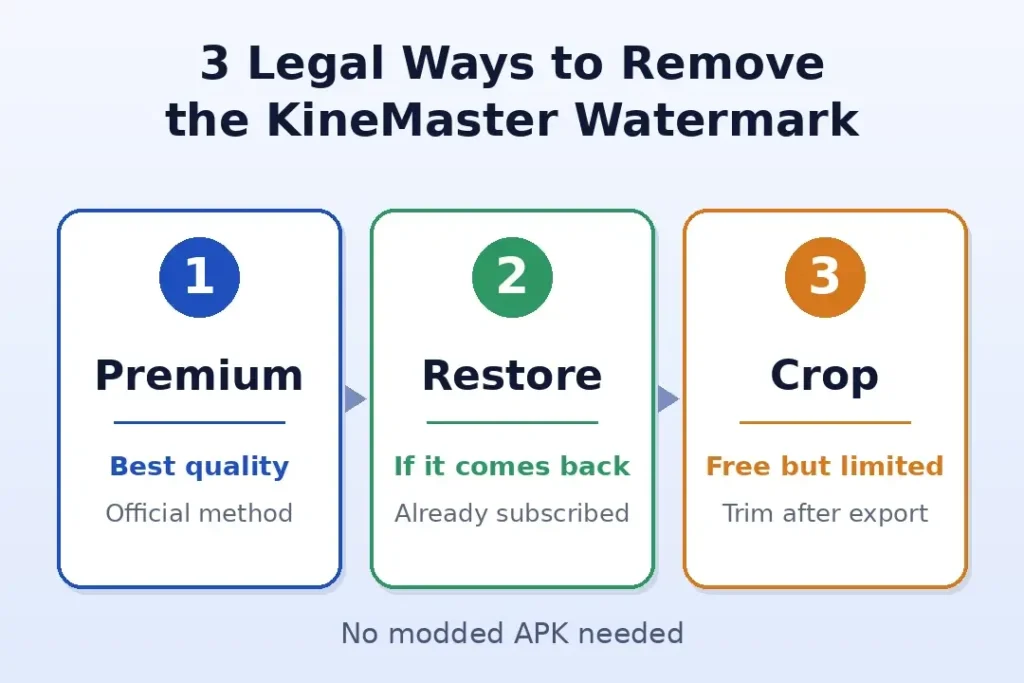
Quick Comparison of the Three Methods
| Method | Cost | Video quality | Best for |
|---|---|---|---|
| Premium subscription | Paid | Original quality | Regular editors and client work |
| Restore Purchase | Free (already paid) | Original quality | Subscribers who see the watermark again |
| Cropping workaround | Free | Slightly lower | Casual, one-off posts |
Frequently Asked Questions
How can I remove the KineMaster watermark legally, without a modified app?
The official method is a Premium subscription. If you cannot subscribe, the cropping workaround is a free alternative, although it trims your frame.
Does the free version of KineMaster always add a watermark?
Yes, exports from the free version carry the logo. A Premium subscription is what removes it.
Can I remove the watermark for free without paying for Premium?
Only partly. You can crop or zoom the exported video in another editor, but you lose some of the picture and a little sharpness.
Why is the watermark still there after I subscribed to Premium?
Usually, the app has not recognised your purchase. A different Google or Apple account, a pending payment, or an old export can all cause this. Restore your purchase, restart the app, and export the video again.
How do I restore my KineMaster Premium purchase if the watermark comes back?
Open the Crown screen from Create and check your subscription. On iPhone, tap Already Purchased? or use Restore Purchase under My Information. If it still fails, contact KineMaster support with screenshots.
Will cropping a video remove the watermark, and does it make the video blurry?
Cropping the exported file can remove it, provided the logo sits near an edge. It may look slightly softer, because zooming enlarges the image and re-saving compresses it again.
Is a KineMaster mod APK safe to use for watermark removal?
No. It can carry malware, it often stops working after updates, and it may break the app’s terms of service.
If I uninstall KineMaster, does my Premium subscription stop?
No. Your subscription belongs to your Google Play or Apple account, not to the app installation. It renews automatically unless you cancel it in the store app. If you reinstall KineMaster, simply restore your purchase.
Conclusion
To remove the KineMaster watermark safely, Premium remains the cleanest option. If the logo returns, restore your purchase before doing anything else. For a quick, free fix, the cropping workaround helps, as long as you accept a slightly tighter frame. Above all, avoid modded APKs, because a watermark is far less costly than a damaged phone.
Related Articles
- How to Make Smooth Slow Motion Videos in KineMaster
- How to Change a Video Background in KineMaster
- KineMaster Audio Problem: How to Fix Sound Issues Easily