
KineMaster Keeps Crashing or Freezing, or Shows “Engine Failed to Initialize”
You open your project, make a few edits, and suddenly the app closes. Or worse, it freezes and never comes back. If KineMaster keeps crashing on your phone, you are not alone, and the problem is usually fixable without losing your work. In this guide, you will learn why crashes happen, which fixes to try first, and what to send to support if nothing helps.
Why Does KineMaster Keep Crashing?
Crashes have many possible causes. KineMaster’s own support team says the cause of any particular crash is rarely easy to identify. Even so, a few culprits come up again and again. For example, an outdated app, low storage, and a weak or overloaded phone are all common. Heavy projects with many layers or high-resolution clips can also push a phone past its limits.
Fix 1: Force Stop and Reopen the App
Start with the simplest step. Repeated attempts to open the app can leave it stuck, so close it completely first.
- Open your phone’s Settings and tap Apps.
- Find KineMaster and tap Force stop.
- Reopen the app.
In most cases, closing the app fully and reopening it clears this kind of error.
Fix 2: Update KineMaster
Next, check your version. Older versions can trigger the “engine failed to initialize” error. Therefore, open the Google Play Store (or the App Store on iPhone), update KineMaster, and test again. KineMaster support lists the latest version as its first troubleshooting step.
Fix 3: Free Up Storage
Low storage is another official check. Make sure your device’s internal storage has enough free space. Because video files are large, delete old downloads, clear chat media, or move files to a memory card or cloud storage. As a rule of thumb, keeping a few GB free helps editing run smoothly.
Fix 4: Reset the App (Your Projects Stay Safe)
If crashes continue, reset KineMaster. This is an official fix, and you will not lose your projects when you do it.
- Open KineMaster and tap Create.
- Tap Settings.
- Tap Reset app.
Fix 5: Reboot Your Phone
After resetting, restart your device. KineMaster support lists rebooting right after the reset. A reboot also clears temporary glitches and frees memory, so the app starts on a clean footing.
Fix 6: Clear the Cache
Clearing the cache removes temporary files without touching your projects.
- Go to Settings, then Apps, then KineMaster.
- Tap Storage.
- Tap Clear Cache.
Avoid Clear Data unless you have backed up your projects, because it can remove settings and account information stored in the app.
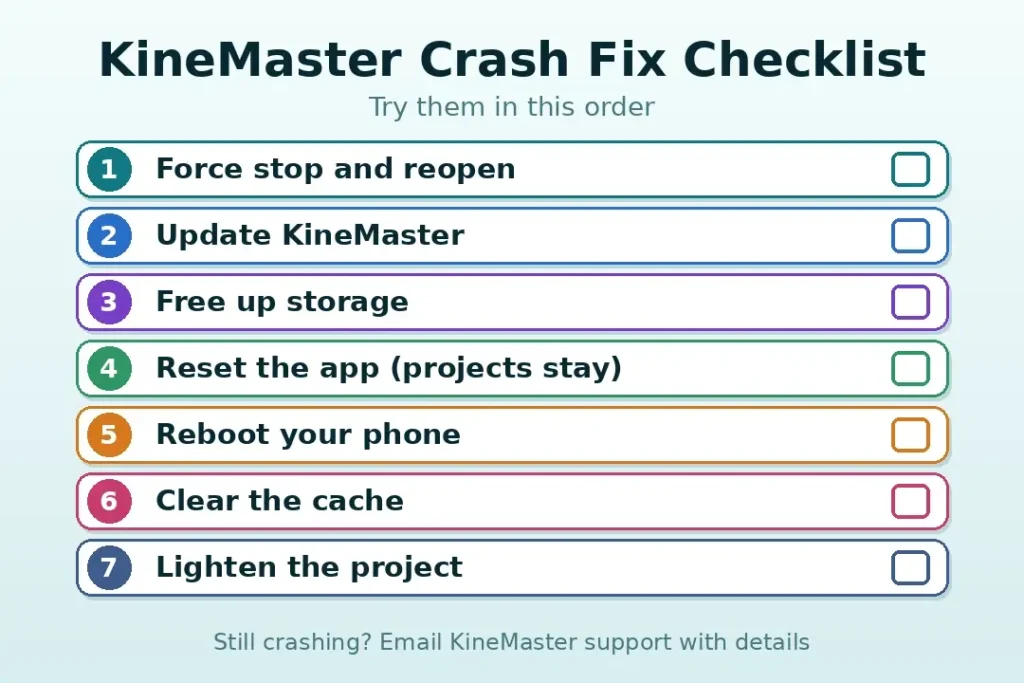
Fix 7: Lighten the Project If KineMaster Freezes While Editing
Sometimes the app does not crash but freezes during editing. This often happens when a phone is not powerful enough for demanding video processing. In that case, make the project lighter:
- Close other apps before you start editing.
- Use fewer layers, effects, and overlays at once.
- Edit at 1080p instead of 4K if your phone struggles.
- Make a lower-resolution copy of heavy clips with KineMaster’s Transcode tool.
- Split a very long project into shorter parts.
Low RAM can cause freezing in the same way, so a budget phone needs a lighter project.
What Does “KineMaster Engine Failed to Initialize” Mean?
This message appears when the app opens but its video engine cannot start. As a result, you often cannot use the editor at all. The fix follows the same order as above. First, force stop and reopen the app. Then update it, reboot your phone, and reset the app if the error returns.
Last Resort: Reinstall KineMaster
If nothing works, reinstall the app. However, back up your projects first, because deleting the app can remove them. After that, install the latest version from the official store and open your backup.
Still Crashing? What to Send to KineMaster Support
Tap the question-mark button in the app and choose Email Support. Give as many details as you can, including the actions you took right before the crash, or a screen recording of those steps. In addition, mention your phone model, Android or iOS version, and your KineMaster version. With these details, the team can find the cause much faster.
Quick Guide: Symptom and Likely Fix
| What you see | Likely fix |
|---|---|
| App will not open, engine error | Force stop, update, reboot |
| App closes during editing | Free storage, reset the app |
| App freezes with a heavy project | Lighten the project, close other apps |
| Crashes continue after everything | Reinstall (after backup), then contact support |
Frequently Asked Questions
Why does KineMaster keep crashing on my phone?
Common causes include an outdated app, low storage, and a phone that struggles with heavy projects. The exact cause is hard to pinpoint, so work through the fixes in order.
What can I do when KineMaster keeps crashing?
Update the app, free up storage, reset it from Create, then Settings, then Reset app, and reboot your phone. If it still crashes, contact support.
How do I fix the “KineMaster engine failed to initialize” error?
Force stop the app and reopen it. Then update KineMaster, reboot your phone, and reset the app if the error remains.
Why does KineMaster freeze while I am editing?
Heavy projects, high-resolution clips, many layers, and low RAM are the usual causes. Close other apps and lighten your project.
Will resetting the app delete my KineMaster projects?
No, according to KineMaster support. Even so, back up important projects before any major step as a precaution.
Can low storage or low RAM make KineMaster crash?
Yes. Low storage is an official check, and a weak phone can make the app freeze or close during heavy edits.
Should I clear the cache or reinstall KineMaster to stop the crashes?
Clear the cache first because it is safe. Reinstall only as a last resort, and back up your projects before you do.
What details should I send to KineMaster Email Support if it still crashes?
Describe what you did right before the crash, or attach a screen recording of those steps. Also include your phone model, system version, and KineMaster version.
Conclusion
When KineMaster keeps crashing, start small. Force stop the app, update it, free some storage, and reset it. Then reboot, clear the cache, and lighten heavy projects. If problems remain, reinstall after a backup and contact support with clear details. Follow these steps in order, and you will usually be editing again within minutes.
Related Articles
- Why Your KineMaster Video Will Not Save or Export, and How to Fix It
- KineMaster Audio Problem: How to Fix Sound Issues Easily
- How to Remove the KineMaster Watermark Legally
- Custom Transitions and Effects in KineMaster
- Make Smooth Slow Motion Videos in KineMaster