
Is There an Official KineMaster for PC? Windows, Mac, Emulators, and Safe Alternatives
If you have ever typed “KineMaster for PC” into Google, you have probably seen dozens of websites offering a free Windows installer. Some even claim to be the official download. So is there really a KineMaster app for your computer, or is it all a trap?
The short answer is no, there is no official KineMaster for Windows. There are a few legitimate ways to use KineMaster on a bigger screen, and some very good desktop editors that do the same job. This guide covers all of them step by step.
Is There an Official KineMaster for PC Download?
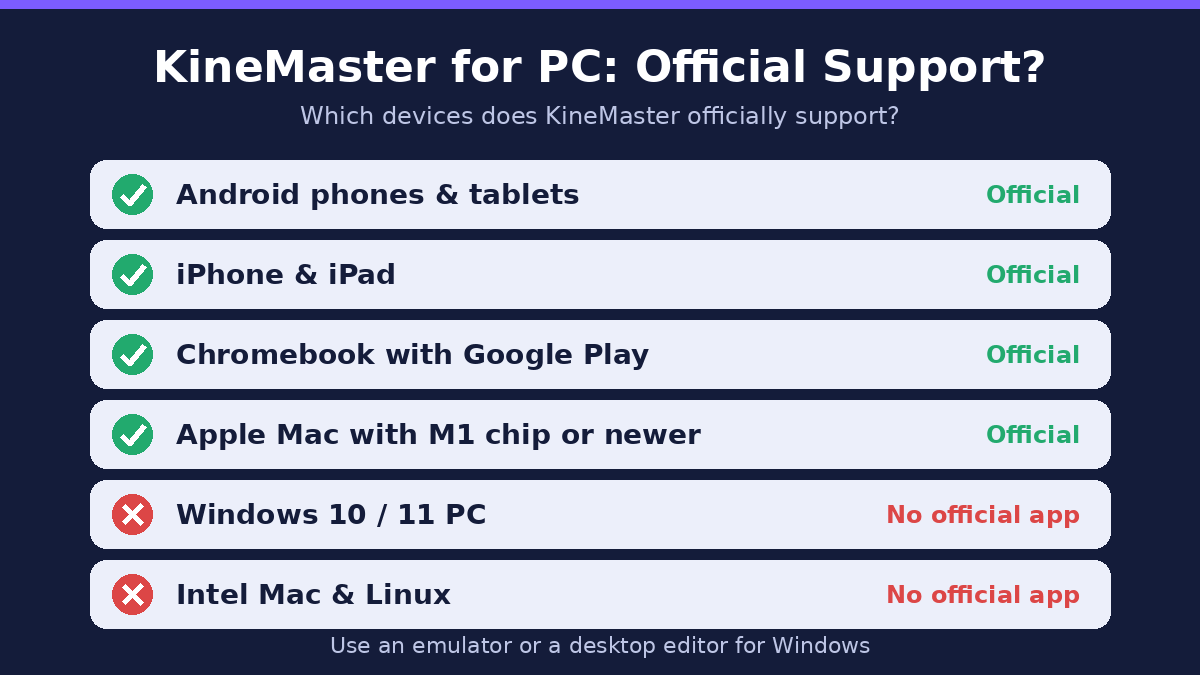
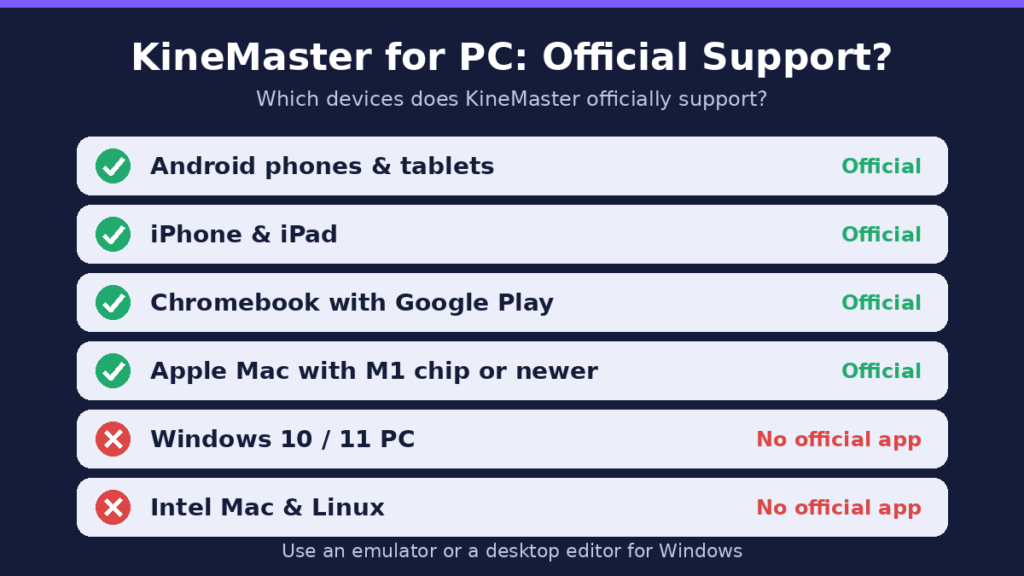
No. KineMaster is built for phones and tablets. KineMaster’s own support page says most computer platforms, including Windows, macOS and Linux, do not support it. It lists only two exceptions: Chromebooks that can run Android apps from Google Play, and Apple computers with an M1 chip.
Recent guides say the same. There is no real .exe installer on the official KineMaster website, and many sites claiming to offer the desktop app are fake. If a page offers a “KineMaster PC setup.exe”, treat it as a warning sign.
Quick summary:
| Platform | Official support? |
|---|---|
| Android | Yes |
| iPhone / iPad | Yes |
| Windows 10 / 11 | No |
| Mac with Apple silicon (M1 or newer) | Yes, per KineMaster support |
| Mac with Intel chip | No |
| Chromebook with Google Play | Yes |
| Linux | No |
Can I Download KineMaster for PC Without BlueStacks?
Yes, you can avoid BlueStacks, but you cannot avoid an Android environment on Windows. KineMaster is an Android app, so something has to run Android for it. Your realistic options are:
- Another emulator, such as NoxPlayer or LDPlayer. Both are commonly listed as alternatives to BlueStacks.
- A cloud version of an emulator. BlueStacks itself says you can play on PC with BlueStacks or from its cloud, which means you do not have to install anything heavy.
- A native desktop editor such as CapCut, Filmora or Clipchamp, which does not need an emulator at all.
Be careful with Chrome extensions named “KineMaster for PC”. One extension on the Chrome Web Store openly states that it is an independent product and is not affiliated with or endorsed by the app’s developers. It is a basic browser tool, not the real KineMaster.
How to Use KineMaster on a Windows Computer with an Emulator
An emulator is software that creates a virtual Android phone on your computer. KineMaster then installs and runs inside it just as it would on a phone.
Step-by-step (BlueStacks example):
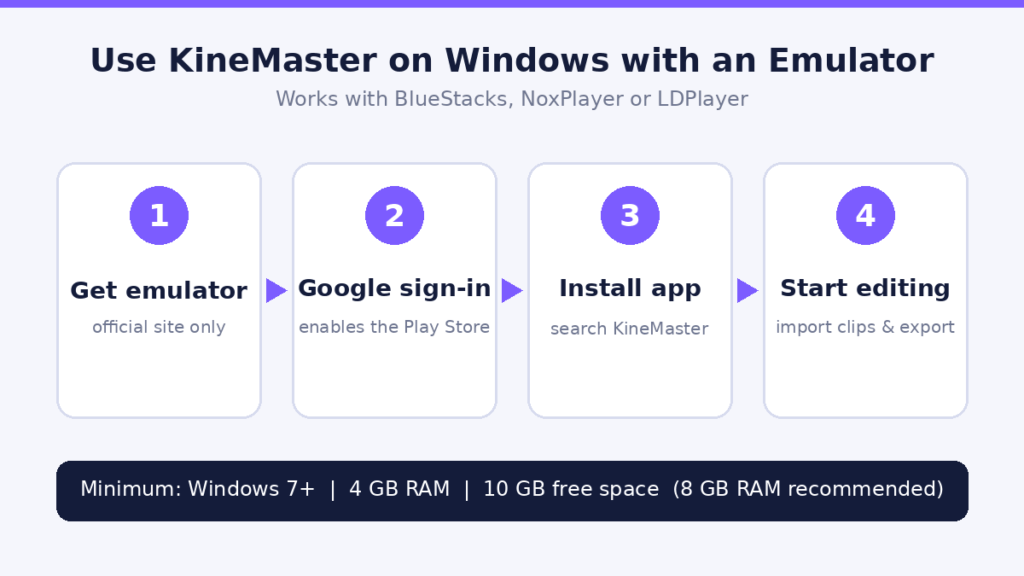
- Check your PC. BlueStacks 5 asks for Windows 7 or higher, an Intel, AMD or Apple Silicon processor, at least 4 GB of RAM and 10 GB of free disk space. For smooth editing, 8 GB of RAM is a much safer target.
- Download the emulator from its official website only. Third-party download sites often bundle extra software with the installer.
- Install and open the emulator. Follow the on-screen prompts.
- Sign in with your Google account to enable the Play Store.
- Search for “KineMaster” in the Play Store and tap Install. Make sure the publisher is KineMaster, not a lookalike.
- Open the app, import your clips and start editing.
Limits to expect:
- The interface is touch-based, so mouse control can feel awkward.
- Lag and crashes are common with large projects. One review notes that the emulator route can make KineMaster slow or cause crashes.
- The free version still adds a watermark. Subscribing to Premium removes ads and the watermark and unlocks all premium assets.
Can I Use KineMaster on a Mac?
It depends on your Mac:
- Mac with Apple silicon (M1, M2, M3 or newer): KineMaster’s support page lists M1 Macs as supported. Try the direct installation from the Mac App Store first. Availability can vary, so search “KineMaster” in the App Store on your Mac.
- Intel Mac: There is no official support. You can try an emulator such as BlueStacks or NoxPlayer, but performance depends on your hardware. A native Mac editor such as iMovie is usually the better choice.
Are KineMaster for PC Installer Websites Safe?
In most cases, no. Here is why:
- There is no official desktop installer, so any “official PC version” is, by definition, not official.
- Fake installers can carry malware, adware or hidden bundled software.
- “Mod APK” versions are especially risky. One guide warns that they are often unsafe, outdated, or filled with malware.
- Cracked premium apps can steal login details and break when KineMaster updates.
Safety checklist:
- Download emulators only from their own official websites.
- Install KineMaster only from Google Play, the Mac App Store, or the official KineMaster website.
- Never disable your antivirus to run an installer.
- Avoid any site asking for your password or card details before a “free download”.
What Are the Best Desktop Alternatives to KineMaster?
If you want a smooth experience on a computer, a native desktop editor is usually better than an emulator. Good options include:
- CapCut for Desktop: one of the closest matches to KineMaster’s simple, mobile-style layout. One review says it runs natively on Windows, so it works more smoothly than KineMaster in an emulator.
- Filmora: multi-track editing with AI tools on Windows and Mac.
- Clipchamp: a free, beginner-friendly editor built into Windows.
- iMovie: a free and simple option for Mac users.
- OpenShot: a free, open-source editor for Windows, Mac and Linux.
- DaVinci Resolve: a professional-grade editor with a capable free version, best for powerful PCs.
Native editors give direct access to your computer’s files and avoid the emulator layer, which usually means fewer crashes on longer projects.
Can I Run KineMaster on a Chromebook Instead of a PC?
Yes, and this is the most official route to a laptop. KineMaster works on Chromebooks that support Android apps. It runs as an Android app on Chromebooks with Play Store support and offers multi-layer timelines, chroma key (green screen) and precise audio controls. KineMaster’s own listing also mentions an editing environment optimized for wide screens on tablets and Chromebooks.
How to install it:
- Open the Google Play Store on your Chromebook. If it is missing, update ChromeOS and enable Google Play in Settings.
- Search for KineMaster and tap Install.
- Open it and start editing.
Things to know:
- A touchscreen makes it much easier. The touch-oriented interface can feel awkward with a trackpad.
- Entry-level Chromebooks may struggle with heavy effects, so choose a model with more RAM if you edit often.
- Chromebooks also support web editors like Clipchamp and WeVideo if KineMaster does not suit you.
Tips and Tricks for Editing KineMaster Projects on a Bigger Screen
- Use a mouse and a keyboard if you can. KineMaster supports hotkeys, and the official site provides a Hotkey Guidelines file you can download.
- Allocate enough resources to your emulator. Give it at least 4 GB of RAM and a few CPU cores in its settings.
- Keep your clips short and use proxy or lower-resolution files while editing, then export in high quality at the end.
- Back up your work often. Emulator projects can be lost if the virtual device is reset.
- Use one Premium subscription on several devices. KineMaster states that one Premium subscription works on up to 5 Android or iOS devices.
- Update your graphics drivers if the emulator is slow or the video preview stutters.
Frequently Asked Questions (FAQs)
Is there an official KineMaster for PC download?
No. KineMaster has no official Windows installer. It is officially available for Android, iOS, supported Chromebooks and Apple M1 Macs.
Can I download KineMaster for PC without BlueStacks?
Yes. You can use another Android emulator such as NoxPlayer or LDPlayer, or skip emulators and use a native desktop editor like CapCut or Filmora.
How can I use KineMaster on a Windows computer with an emulator?
Install an emulator from its official site, sign in to Google Play, search for KineMaster, install it and start editing. Your PC should have at least 4 GB of RAM and 10 GB of free storage.
Can I use KineMaster on a Mac?
Yes, on Macs with Apple silicon, per KineMaster’s support page. Check the Mac App Store. Intel Macs have no official support.
Are KineMaster for PC installer websites safe?
Usually not. There is no official desktop installer, so these sites often distribute fake files that may contain malware.
What are the best desktop alternatives to KineMaster?
CapCut Desktop, Filmora, Clipchamp, iMovie, OpenShot and DaVinci Resolve are all strong options.
Can I run KineMaster on a Chromebook instead of a PC?
Yes, if your Chromebook supports Google Play. Install it from the Play Store like any Android app. A touchscreen gives the best experience.
Conclusion
There is no official KineMaster for Windows, and any site offering one should be treated with suspicion. You still have good choices. Use an emulator like BlueStacks if you want the familiar KineMaster interface, install it directly on an M1-or-newer Mac or a Play Store Chromebook for the closest thing to official support, or switch to a native desktop editor like CapCut, Filmora or Clipchamp for the smoothest long-form editing. Whatever you pick, download only from official sources and stay away from mod APKs.
Related Tools
- KineMaster Audio Problem: How to Fix Sound Issues Easily
- How to Make Smooth Slow Motion Videos in KineMaster
- How to Remove the KineMaster Watermark Legally